
Category Archives: Confluence
Confluence 4 editor, wiki markup and XML storage format – tips from an expert
Graham Hannington is a Confluence fundi. He has steeped himself in the new “XHTML-based” storage format, bent the Confluence 4 editor to his will, and resurrected wiki markup in ingenious ways.
Graham has recently started adding his findings to this wiki: Advanced Confluence Tips. Here are the hints he has shared to date:
- Bypassing the Confluence rich text editor interface
- Converting Confluence rich text editor content to wiki markup
- Converting Confluence storage format XML to wiki markup
- Editing Confluence pages in an external validating XML editor
- Validating Confluence XML storage format
- Showing tag names and some attributes in the Confluence rich text editor
A huge thanks to Graham, for sharing the results of his indepth investigation and design work!
If you’d like to comment on Graham’s pages, or add some hints of your own, you can sign up for a username on the wiki. It’s free. 🙂
Brightening up the Australian winter
A Rainbow Lorikeet, encountered on a walk in the bush a week or so ago:

Yaayyy a Confluence doc sprint coming soon
 We’re holding one of our famous choc fests, uh, doc sprints! This time we’re targeting the Confluence developer documentation. We plan to build some simple but lustworthy Confluence add-ons, and write them up so that other people can follow in our footsteps.
A doc sprint is an event where some seriously cool people spend time together, building plugins and other add-ons, and crafting tutorials around them. This one is hosted by Atlassian – makers of Confluence wiki, and where I work. The doc sprint is happening in Sydney, San Francisco, Amsterdam, and online for everywhere else.
Has anyone held a doc sprint in Amsterdam before, or are we the first? 😉 A little bird told me there’s a divine chocolate shop just around the corner from the Atlassian office. The ideal venue for a doc sprint!
Event details
Date: Wednesday 22 August to Friday 24 August 2012 (3 days)
Location in Australia: The Atlassian Sydney office, 173-185 Sussex Street, Sydney, Australia
Location in the US: The Atlassian San Francisco office, 1098 Harrison Street, San Francisco, CA, 94103, USA
Location in Europe: The Atlassian Amsterdam office, Keizersgracht 311, 1016EE Amsterdam, Netherlands
Online: Want to join us remotely? If you can’t make it to Sydney, San Francisco or Amsterdam, or if you’d like to spend just a few hours rather than the whole two days, drop in on our daily webinar sessions, follow the buzz in our online chat room and subscribe to our email list. We’ll fill in the details nearer the date.
Sign up and tweet
Are you a plugin developer with a bent for writing, or a writer with a knack for plugin development? Add your name to the list of attendees. Make sure you tell us your chocolate middle name. Take heed: Your choice of name may have unexpected consequences.
And tweet #AtlassianDocSprint.
What will you get out of it ?
- A designer, limited-edition, Atlassian doc sprint T-shirt. No-one else in your ‘hood will have one like it!
- Eternal recognition as author. Your name will appear as author of the tutorial on the Atlassian documentation wiki.
- Kudos from the Atlassian technical writers. We’ll write up our results on the Atlassian blog and you’ll be inducted into the Doc Sprint Hall of Fame.
- Learn while you write. We’ll have some Atlassian developers on tap to help us over the sticky spots. Pair with a technical writer to get those words buzzing.
- Chocolate. Indubitably, there will be chocolate in there somewhere.
Comparing SharePoint and Confluence
People often ask how SharePoint and Confluence compare, especially as tools for building and hosting technical documentation. Here’s my take on it, as someone who has used both.
I’ve worked as document manager on SharePoint and as technical writer on Confluence. A while ago, I did a comparative study of SharePoint 2010 and Confluence. The focus was on using the tools for technical documentation. I examined the following aspects:
- Designing and creating a documentation suite. Developing a document. Providing structure via mechanisms like a table of contents, a left-hand navigation bar, and logical page ordering. Classifying documents via keywords and other metadata, for ease of browsing and search. Moving documents around.
- Collaboration. The features that enable collaborative content development and review. Comments. Concurrent editing. Checking documents in and out. Version control for individual documents and pages. Tracking of updates via page history, RSS feeds and notifications.
- Workflow and permissions. Using workflow features to create a document or page in draft status, have it reviewed, publish the final approved version, and when necessary, update the document or page after publication. Controlling access to documents and pages via permissions.
- Support for other formats. Publishing to formats like PDF, DocBook XML, and HTML. Integration with Microsoft Office. Use of the documentation site as destination for online help.
- Managing attachments and legacy documentation. Uploading and serving existing documents and attachments.
- Overall usability and reader’s experience. Collaboration with readers and other authors. Engagement of the readers in the documentation. Efficient use of time in the authoring and publication workflow. Aesthetics and simplicity.
Looking specifically at the wiki part of SharePoint, I found that the SharePoint 2010 wiki is not the same sort of tool as a standalone wiki platform. The SharePoint wiki is more like a set of web pages that are unrelated to each other. But because they are one of the components of the SharePoint platform, you have the power to manipulate and integrate the wiki pages with the other components.
SharePoint and Confluence are totally different things. Both have areas of strength and areas where they are less strong.
- SharePoint is an all-in-one portal development and document management tool, with wiki pages tacked on.
- Confluence is an all-in-one document development, document publishing and collaboration tool, with management of external documents tacked on.
My conclusion was that you should use SharePoint if both the following are true:
- Your primary need is document management. There is a large set of existing documentation in various non-wiki formats, such as legacy Word and PDF documents, complex Visio diagrams and spreadsheet formulas. In addition, you have an existing, stable and tidy SharePoint installation with competent, full-time site administrators.
- You need a wide variety of discrete content types all on a single portal, such as discussion lists, task lists, non-wiki documents, and web pages.
And Confluence is the right choice if both the following are true:
- Your primary need is document development and presentation. You want a single platform for designing, developing, and publishing your documentation.
- You want your documentation easily accessible to readers and authors, with a uniformity of interface that is unintrusive and predictable (in a good way). Content is king. Readers and authors collaborate on the page itself rather than in separate discussion lists.
A quick note: I’ve previously posted a similar report on Technical Writing World, in a forum, and in my book. Now I’m doing the here, to give more people the chance of finding the information. (Thank you WordPress and Google for the SEO goodness.)
Comments welcome. 🙂 I’d love to hear from people who have used both tools, and also to hear if this information is useful to people who have used only one or neither of them.
How to convert Confluence XML storage format to wiki markup
Are you looking for a quick, unsupported but still immensely useful way of converting a page, or a small chunk of content, from the new Confluence storage format back to good old wiki markup? The new XML storage format is used in Confluence 4. Wiki markup is used in Confluence 3 and is still required in parts of Confluence 4. Graham Hannington has created a web page that does the conversion for you. His tool is called the Wikifier. Just paste in the Confluence storage format XML on the left, and see the wiki markup appear on the right immediately.
I’m busy documenting the wiki markup and storage format for all the Confluence macros. Graham’s Wikifier is proving very useful indeed, so I thought I’d tell you about it. This is what it looks like, processing the much-beloved Cheese macro:
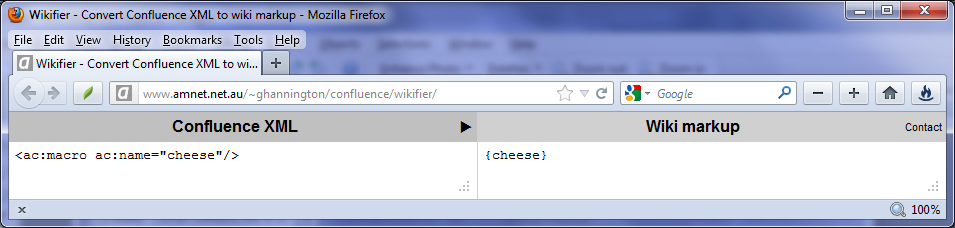
Graham provides other resources, including an XML schema for the Confluence storage format, and associated documentation: Graham’s Confluence resources page.
One use case – converting a page to a template
One problem with Confluence 4.0, 4.1 and 4.2 is that page templates must be written in wiki markup. They do not yet support the new rich text format used by the new editor. If you have developed a page and want to convert it to a template, you’re stuck, because the content of a page is no longer available as wiki markup.
To get round this problem:
- View the storage format for the page that you want to use as a template. How? The “View Storage Format” option appears in the “Tools” menu. It is available to Confluence system administrators, and to people who have permission to use the Confluence Source Editor, which is available as a plugin.
- Copy the storage format of the page’s content, paste it into Graham’s Wikifier, and grab the wiki markup.
- Use the wiki markup to create your page template in Confluence.
Caveats
See Graham’s comment announcing the Wikifier.
An extract from that comment:
What Wikifier is, and is not
Wikifier is a minimal test harness for an XSLT stylesheet I have developed that converts Confluence XML to wiki markup.
The XSLT stylesheet is by no means complete. I welcome your feedback. If Wikifier does not correctly convert some Confluence XML, please let me know (if you like, use the Contact mailto link on Wikifier), and I will do what I can (no promises, though).
Wikifier is not a replacement for the Confluence 3 wiki markup editor view.
Wikifier is only a test harness; it is not intended to be a fully fledged application.
I hope this is as useful to you as it is to me. 🙂
Recording of webinar about Confluence wiki, collaboration and technical communication
Yesterday I presented a Scriptorium webcast titled “Collaboration: A hands-on demo using Confluence wiki“. The kind folks at Scriptorium have made a recording of the webinar available, and I’ve uploaded my slides too.
This presentation is about collaboration and what it means to technical communicators, and how we can use a wiki to enhance the experience. I give a hands-on demonstration of creating a technical documentation space on a wiki. You will see how to design a home page using the Confluence editor, macros, and even a touch of Twitter integration. You’ll also see how to draft a page, invite subject matter experts to review the page, and keep track of what they do to your documentation. After walking through the simple workflow of draft, review and publication, I discuss the use of add-ons and plugins to supply more sophisticated workflow functionality.
It was great to get some questions from attendees and answer them at the end of the session too. Having a live wiki up and running was very useful to illustrate the answers!
Webinar recording
Scriptorium has published the recording of the webinar on SlideShare: Webinar: Collaboration: A hands-on demo using Confluence wiki
Slides with speaker’s notes
Once you’ve watched the webinar, you may find it useful to see the slides with my speaker’s notes. The slide deck includes screenshots of the parts of the demo that were live on the wiki during the presentation. The slides available on SlideShare: Slides: Collaboration: A hands-on demo using Confluence wiki.
To see the speaker’s notes, click the tab labelled “Notes on slide n” under each slide (next to the comments tab).
Who is Donna Dark?
 Donna is a denizen of my demo wiki. She’s a technical communicator extraordinaire. Take a peak at the webinar recording. You’re bound to bump into her.


 ffeathers